In 2025, Wi-Fi is like electricity or water—it's fundamental infrastructure that customers expect to work flawlessly. They don't think about it when it works, but they notice immediately when it doesn't. A bad Wi-Fi experience (slow speeds, connection drops, inability to connect) doesn't just frustrate customers—it reflects poorly on your entire brand and operation.
According to recent hospitality surveys, 62% of customers consider reliable Wi-Fi a critical factor in choosing where to work or dine. For hotels, it's the #1 amenity complaint when poorly implemented. Poor Wi-Fi can cost you reviews, repeat business, and competitive standing.
Yet many businesses approach Wi-Fi as an afterthought—grabbing a consumer-grade router from a big-box store, setting a simple password, and calling it done. This approach creates security vulnerabilities, performance bottlenecks, and missed marketing opportunities.
This comprehensive guide covers everything you need to set up business-grade Wi-Fi that is fast, secure, scalable, and professionally managed.
The Business Wi-Fi Checklist: Core Principles
Before diving into specifics, understand the five pillars of proper business Wi-Fi:
- Segmentation: Separate networks for business and guests
- Performance: Adequate bandwidth and proper quality of service
- Security: Encryption, isolation, and access controls
- Reliability: Enterprise-grade hardware and redundancy
- Management: Monitoring, analytics, and remote administration
Get these right, and you'll have Wi-Fi that enhances your business rather than creating problems.
1. Network Segmentation: The Golden Rule
Never, ever let guests on your main business network. This is the single most important rule of business Wi-Fi security.
Why Segmentation Matters
Your business network contains sensitive systems:
- Point of Sale (POS) terminals processing credit cards
- Security cameras streaming footage
- Office computers with business data
- Printers and network-attached storage
- Staff tablets and management systems
- Back-office servers and databases
When you allow guests on your business network, you're trusting every customer's device—including potentially infected phones, compromised laptops, and devices with malware.
Real-World Risk Example: A Seattle coffee shop allowed guests on their primary network. A customer's laptop was infected with ransomware. The malware spread to the shop's network-attached storage, encrypting all business files including tax records and payroll data. Ransom demand: $15,000. Recovery cost even without paying ransom: $8,000 in IT services and lost productivity.
How to Implement Segmentation
Option 1: Guest SSID (Simple) Most modern routers support creating a "Guest Network" with a separate SSID (network name).
Configuration:
- Main network: "YourBusinessName-Private" (hidden SSID optional)
- Guest network: "YourBusinessName-Guest" (visible, password-protected or open with captive portal)
Access Control: Enable "Client Isolation" or "AP Isolation" on the guest network. This prevents guest devices from seeing or communicating with each other or with business network devices.
Typical Router Path:
- Linksys/Cisco: Advanced Settings → Guest Network → Enable
- Netgear: Advanced → Wireless Settings → Guest Network
- Ubiquiti: Settings → Wireless Networks → Create New (set as Guest)
Option 2: VLAN Segmentation (Advanced) For businesses with managed switches and enterprise access points, VLANs (Virtual Local Area Networks) provide hardware-level separation.
Configuration:
- VLAN 1: Management (router, switches, access points)
- VLAN 10: Business (POS, security cameras, office devices)
- VLAN 20: Staff (employee personal devices)
- VLAN 30: Guest (customer devices)
Benefits:
- Complete network isolation
- Granular firewall rules between VLANs
- Easier troubleshooting (identify traffic by VLAN)
- Scalability for multiple locations
When to Use VLANs:
- Multiple physical locations
- More than 50 concurrent devices
- PCI-DSS compliance requirements (credit card processing)
- High-value intellectual property to protect
Firewall Rules
Beyond simple segmentation, configure firewall rules:
Guest Network Rules:
- Allow: Internet access only
- Block: Access to business network subnet (e.g., 192.168.1.0/24)
- Block: Access to router admin interface
- Block: Access to local file sharing services (SMB, AFP)
- Block: Peer-to-peer protocols (if desired)
Most modern routers include preset "Guest Network" modes that automatically implement these rules.
2. Bandwidth Management: Quality of Service (QoS)
One customer downloading a 100GB game shouldn't bring your entire operation to a crawl. Bandwidth management ensures fair allocation and priority for critical systems.
Understanding the Problem
Scenario: Your café has 100 Mbps internet. During lunch rush:
- 30 customers connected to guest Wi-Fi
- One customer is downloading large files (consuming 40 Mbps)
- Your POS system needs to process credit cards (requires 1 Mbps but low latency)
- Staff trying to place supplier orders (need reliable connection)
Without QoS, that one downloading customer might saturate the connection, causing:
- POS transactions timing out
- Staff unable to access cloud systems
- Other guests experiencing slow speeds
- Frustrated customers and lost productivity
Implementing QoS
Strategy 1: Per-Device Rate Limiting
Limit maximum bandwidth any single guest device can consume.
Recommended Limits:
- Download: 5-10 Mbps per device
- Upload: 1-2 Mbps per device
This allows smooth HD video streaming and video calls while preventing monopolization.
Configuration Example (Ubiquiti):
- Navigate to: Settings → Wireless Networks → Guest Network
- Set: Download limit: 8 Mbps, Upload limit: 2 Mbps per device
Strategy 2: Network-Wide Allocation
Divide total bandwidth between networks:
- Business Network: 60-70% of total bandwidth
- Guest Network: 30-40% of total bandwidth
Example with 100 Mbps Connection:
- Business: 70 Mbps (guaranteed)
- Guest: 30 Mbps (guaranteed)
- Overflow: Business can use guest bandwidth when guests aren't active
Strategy 3: Traffic Prioritization
Assign priority levels to different traffic types:
Priority 1 (Highest): Critical Business
- POS and payment processing
- VoIP phones
- Security camera uploads
- Administrative access
Priority 2: Business Operations
- Email and cloud applications
- Inventory management
- Staff web browsing
Priority 3: Guest Services
- Guest web browsing
- Streaming media
Priority 4 (Lowest): Bulk Transfers
- Software updates
- Large file uploads/downloads
- Cloud backups
Most enterprise routers support QoS tagging (DSCP/802.1p). Consumer routers often have simpler "Gaming/Streaming/Browsing" priority modes.
Peak Period Management
During busiest hours, consider stricter limits:
Happy Hour at Restaurant (5-7 PM):
- Normal period: 10 Mbps per guest device
- Peak period: 5 Mbps per guest device
- POS priority elevated to maximum
Some advanced systems allow automatic adjustment based on network load.
3. Hardware Selection: Don't Cheap Out
That $40 consumer router from 2015 isn't suitable for business use. Business-grade networking hardware provides reliability, capacity, security, and management features consumer gear lacks.
Understanding Capacity
Consumer Router Specifications:
- Typical capacity: 10-15 devices
- Speed degrades significantly above 8 devices
- No remote management
- Limited security features
- 1-2 year lifespan under business use
Business Router Specifications:
- Typical capacity: 50-250+ devices per access point
- Consistent performance under load
- Cloud management and monitoring
- Advanced security (IDS/IPS, content filtering)
- 5-7 year lifespan
Calculate Your Needs
Device Count Formula:
Peak Devices = (Peak Customers × 1.5) + Business Devices + Buffer

Example for 40-seat café:
- Peak customers: 40
- Devices per customer: 1.5 (phone + laptop)
- Customer devices: 60
- Business devices: 12 (POS, tablets, security, printers)
- Buffer (20%): 14
- Total capacity needed: 86 devices
Choose hardware rated for at least 150% of your calculated need to ensure consistent performance.
Coverage Planning
Rule of Thumb:
- Single access point: Up to 2,000 sq ft (open space)
- Obstructions (walls, metal fixtures) reduce range by 40-60%
- Multi-story: Separate access point per floor
- High-density (conference rooms): One AP per 1,000 sq ft
Common Mistake: Trying to cover 5,000 sq ft with one consumer router. Result: Dead zones, constant disconnections, frustrated customers.
Recommended Solutions by Business Size
Small (1-2,000 sq ft, under 30 devices):
- Ubiquiti UniFi UAP-AC-Lite ($79) + EdgeRouter X ($59)
- TP-Link Omada EAP225 ($60) + ER605 Router ($60)
- Netgear Orbi Pro (SRK60) ($300 for router + 1 satellite)
Medium (2,000-5,000 sq ft, 30-100 devices):
- Ubiquiti UniFi Dream Machine Pro ($379) + 2-3 AC-Pro APs ($149 each)
- Cisco Meraki Go GR10 + 2-3 access points ($700 total)
- Aruba Instant On AP22 (3-pack) ($600)
Large (5,000+ sq ft, 100+ devices):
- Ubiquiti UniFi Dream Machine Pro + 5+ U6 APs ($1,500-3,000)
- Ruckus Unleashed R650 system ($2,000-5,000)
- Cisco Meraki MR36 + MX67 ($3,000-6,000)
- Enterprise-grade solutions with professional installation
Mesh vs. Traditional Access Points
Mesh Systems: Wireless backhaul between access points (no ethernet cables needed)
Pros:
- Easier installation (no running cables)
- Flexible placement
- Good for historic buildings or rental spaces
Cons:
- Lower performance (wireless backhaul uses bandwidth)
- More expensive per access point
- Less reliable under high load
Traditional Access Points: Ethernet cable to each access point (wired backhaul)
Pros:
- Maximum performance
- More reliable
- Lower cost per access point
- Better for high-density
Cons:
- Requires running ethernet cables
- Professional installation often needed
Recommendation: If you can run cables, use traditional APs. If cabling is impossible or cost-prohibitive, use enterprise mesh (not consumer mesh).
4. The Captive Portal: Gateway Experience
A captive portal is the splash page customers see when first connecting to your network. It serves multiple purposes: branding, legal protection, marketing, and analytics.
Basic Captive Portal Functions
Branding:
- Display your logo and brand colors
- Welcome message
- Service highlights (menu items, specials, events)
Legal Protection:
- Terms of Service acceptance
- Acceptable Use Policy
- Disclaimer of liability
Access Method:
- Click-through (just click "Accept")
- Email/phone collection (before granting access)
- Social media login (Facebook/Google OAuth)
- Voucher/code system (staff provides code)
Legal Considerations
Why You Need Terms of Service:
When customers use your network for illegal activity (piracy, hacking, harassment), law enforcement investigations initially focus on your business as the registered IP address owner.
While you're generally not liable for customer actions (under safe harbor provisions), investigations are disruptive. A Terms of Service page provides:
Legal Benefits:
- Evidence you prohibit illegal activity
- Basis for user accountability
- Reduction in liability risk
- Compliance with regulations (HIPAA, PCI-DSS for some businesses)
Essential Terms to Include:
- Prohibition of illegal activity
- No copyright infringement
- No hacking or unauthorized access
- No harassment or threatening behavior
- Right to monitor network activity
- Right to terminate access
- Limitation of liability
- User agreement to comply with laws
Template Example:
By clicking Accept, you agree to:
• Use this network for lawful purposes only
• Not access, download, or share copyrighted material
• Not attempt to access other devices on this network
• Not engage in any illegal activity
• Accept that your activity may be logged
• Hold [Business Name] harmless for network issues

[Business Name] reserves the right to monitor network traffic
and terminate access for any violations.
Consult with a lawyer to tailor terms to your jurisdiction and business type.
Marketing with Captive Portals
Data Collection Ethics:
You can collect customer information, but you must:
- Provide clear value exchange ("Free Wi-Fi for your email")
- Explain how data will be used
- Provide opt-out option
- Comply with GDPR (Europe), CCPA (California), CASL (Canada)
- Honor unsubscribe requests
Collection Methods:
Email-Gated Access:
Get free Wi-Fi by entering your email address:
[Email field]
☐ I'd like to receive special offers and updates
[Get Wi-Fi Access button]

We respect your privacy. You can unsubscribe anytime.
By continuing, you accept our Terms of Service.
Social Media Login: "Connect with Facebook/Google to access Wi-Fi"
Benefits:
- Easy for user (one-click)
- Demographic data (age, gender, location)
- Ability to target Facebook ads to past guests
Considerations:
- Some users refuse to link social accounts
- Always provide email alternative
Post-Connection Marketing:
After granting access, redirect to:
- Today's specials or promotions
- Social media follow prompts
- Survey or feedback form
- Loyalty program enrollment
- Event calendar
Example Flow:
- Customer connects to Wi-Fi
- Captive portal: "Enter email for access"
- Customer enters email, clicks submit
- Access granted, redirect to: "Follow us on Instagram @YourBusiness for daily specials!"
- After 3 seconds, user is sent to wherever they were trying to go
Captive Portal Platforms
Free/Built-in Options:
- Ubiquiti UniFi (included with UniFi system)
- pfSense CaptivePortal (open-source router OS)
- DD-WRT/OpenWRT (custom router firmware)
Limitations: Basic functionality, manual email list management
Paid Platforms ($20-200/month):
- Tanaza
- Purple WiFi
- Wink
- Yelp WiFi
- Cisco Meraki (included with hardware)
Features:
- Custom branding
- Email marketing automation
- Social media integration
- Analytics dashboard
- CRM integration
- SMS campaigns
- Loyalty program
ROI Example: $49/month captive portal platform collects 500 emails monthly. Email campaign converts 2% to repeat visits. 10 monthly conversions × $25 average order = $250 monthly revenue ROI: 510%
5. Security & Encryption: Protecting Your Network
Security isn't optional—it's essential for protecting your business and customers.
Encryption Standards
WPA3 (Best - 2018+): Latest standard, strongest encryption, resistant to offline dictionary attacks.
Use When: Your router and most customer devices support it (iPhones 11+, Android 10+, Windows 10+, Macs 2018+)
WPA2 (Good - 2004+): Previous standard, still secure when properly configured.
Use When: You need broad device compatibility (older devices, IoT gadgets)
WPA/WEP/Open (Unacceptable): Obsolete and easily cracked. Never use for business.
Recommended Configuration:
- Business network: WPA3-Personal or WPA2-Personal
- Guest network: WPA2-Personal with captive portal
- Alternative guest: Open network with captive portal (easier for customers, portal provides legal protection)
Password Best Practices
Guest Network Password:
- Length: 12-20 characters
- Complexity: Mix of letters, numbers, symbols
- Memorable: Use passphrase model ("BlueMountainCoffee2025!")
- Change: Quarterly or when compromised
Do NOT:
- Use business name only ("CafeBlue" is easily guessed)
- Use sequential numbers ("password123")
- Never change it (passwords should rotate)
- Write it in permanent places (printed menus that can't be updated)
Best Practice: Use NFC tags or QR codes so customers never see the password. You can change it regularly without impacting customer experience.
Additional Security Measures
MAC Address Filtering (Optional): Whitelist approved devices for business network.
Pros: Extra security layer Cons: Management overhead, MAC addresses can be spoofed
Recommendation: Use for business network in high-security environments, skip for guest network.
Content Filtering: Block access to malicious or inappropriate websites.
Options:
- DNS-based: OpenDNS, Cloudflare for Teams, Quad9
- Router-based: Many enterprise routers include content filtering
- Appliance-based: Fortinet, Palo Alto, Cisco Umbrella
Block Categories:
- Malware and phishing sites (always)
- Adult content (for family-friendly businesses)
- File sharing/torrenting (reduces bandwidth abuse)
- Gambling (optional, jurisdiction-dependent)
Implementation: Point router DNS to filtering service:
- OpenDNS Family Shield: 208.67.222.123, 208.67.220.123
- Cloudflare for Families: 1.1.1.3, 1.0.0.3
- Quad9: 9.9.9.9
Intrusion Detection/Prevention: Advanced routers can detect and block malicious traffic patterns.
Features:
- Detect port scanning
- Block known attack signatures
- Prevent DDoS attacks from originating on your network
- Alert on unusual traffic patterns
Available in: Ubiquiti DreamMachine Pro, pfSense, Sophos, Fortinet
Session Timeout: Automatically disconnect idle users after period of inactivity.
Recommended Settings:
- Guest network: 2-4 hour timeout
- Requires re-authentication after timeout
Benefits:
- Frees up network slots
- Forces stale connections to refresh
- Reduces unauthorized access from forgotten devices
6. Physical Security: Protecting Your Equipment
Network security isn't only digital.
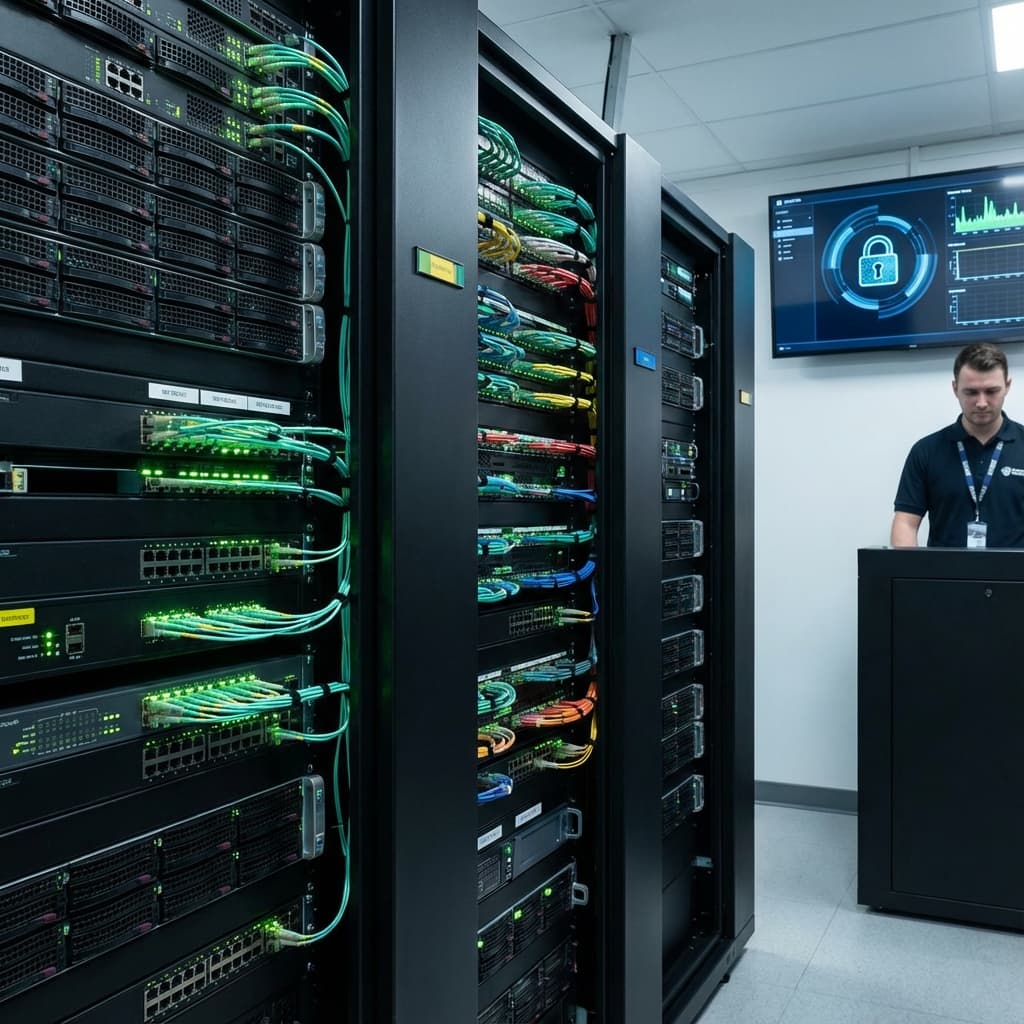
Router/Switch Placement:
- Locked room, closet, or cage
- Rack-mounted and secured
- Away from public access
- Climate-controlled (heat degrades equipment)
Why: Prevents unauthorized physical access to network equipment. Someone with physical access can:
- Press reset button (wipes configuration)
- Plug in unauthorized devices
- Steal equipment
- Install packet sniffing hardware
Access Point Placement:
- Ceiling-mounted (out of reach)
- Secured with anti-theft screws
- Cable runs through ceiling/walls (protected)
Power Protection:
- Uninterruptible Power Supply (UPS) for network equipment
- Surge protectors
- Battery backup (keeps network online during brief outages)
Recommended: APC Back-UPS 600VA ($75-100) provides 30-60 minutes of backup power.
7. Monitoring & Management: Ongoing Maintenance
Set-it-and-forget-it doesn't work for business networks.
What to Monitor
Daily/Automatic Checks:
- Internet connectivity (up/down)
- Network device status
- Bandwidth usage
- Number of connected devices
- Unusual traffic patterns
Weekly Reviews:
- Top bandwidth consumers
- New devices on network
- Error logs
- Performance metrics (latency, packet loss)
Monthly Reviews:
- Device inventory audit
- Security updates and firmware
- Password rotation (quarterly)
- Capacity planning (approaching limits?)
Monitoring Tools
Built-in Dashboard: Most enterprise routers include monitoring:
- UniFi Controller (Ubiquiti)
- Meraki Dashboard (Cisco Meraki)
- Omada Controller (TP-Link)
- Instant On (Aruba)
Features to Use:
- Real-time device list
- Bandwidth graphs
- Alert notifications (email/SMS when issues occur)
- Historical data (identify patterns)
Third-Party Monitoring:
- PRTG (free up to 100 sensors)
- Nagios (open-source)
- Zabbix (open-source, enterprise-grade)
Set Up Alerts:
- Internet connection down
- Router/AP offline
- Bandwidth exceeds 80% capacity
- Unknown device on business network
- Firmware updates available
Remote Management
Manage network from anywhere:
- Cloud-based controllers (UniFi, Meraki)
- VPN access to local controller
- Mobile apps (most enterprise systems have apps)
Benefits:
- Troubleshoot issues without being on-site
- Manage multiple locations from central dashboard
- Guest access temporary password changes
- View network status while traveling
8. Guest Network Best Practices Checklist
✅ Segmentation:
- Separate guest SSID or VLAN
- Client isolation enabled
- Firewall rules blocking business network access
✅ Performance:
- Per-device bandwidth limits (5-10 Mbps)
- Network capacity exceeds peak demand by 50%
- QoS prioritizes business traffic
✅ Security:
- WPA2 or WPA3 encryption (or captive portal on open network)
- Strong password changed quarterly
- Content filtering enabled
- Session timeout configured
✅ Legal:
- Captive portal with Terms of Service
- Logging enabled (IP, MAC, connection times)
- Privacy policy for data collection
- Compliance with regional regulations
✅ Hardware:
- Enterprise-grade equipment
- Adequate access point coverage
- Physical security (locked equipment room)
- UPS power backup
✅ Management:
- Monitoring and alerts configured
- Regular firmware updates
- Weekly performance reviews
- Annual capacity assessments
9. Troubleshooting Common Issues
Issue: Customers can't connect
Possible Causes & Solutions:
Too many connected devices:
- Check connected device count
- Increase capacity (add access point)
- Implement session timeouts
Wrong password:
- Verify password is correct
- Check for case sensitivity
- Ensure no special characters causing confusion
- Consider NFC/QR code for foolproof access
DHCP pool exhausted:
- Increase DHCP address range
- Reduce lease times (from 24h to 2h)
- Restart DHCP server
Access point offline:
- Check physical connections
- Reboot access point
- Check for firmware issues
- Verify PoE (Power over Ethernet) is working
Issue: Slow speeds
Possible Causes & Solutions:
Bandwidth saturation:
- Identify top bandwidth consumers
- Implement or tighten rate limits
- Upgrade internet plan
- Check for unauthorized usage
Channel interference:
- Use WiFi analyzer app to detect interference
- Change channel (use 1, 6, or 11 for 2.4GHz)
- Switch to 5GHz for less congestion
- Enable automatic channel selection
Weak signal:
- Check signal strength at problem areas
- Relocate or add access points
- Upgrade to higher-power APs
- Reduce obstacles (metal, concrete)
ISP issues:
- Run speed test from router (not wireless)
- Contact ISP if not getting paid speeds
- Check for service outages
- Verify modem/ONT status
Issue: Frequent disconnections
Possible Causes & Solutions:
Over-capacity:
- Check device count vs. AP capacity
- Add access points
- Implement session limits
Power issues:
- Check PoE injector/switch
- Verify power supply voltages
- Install UPS
- Check for overheating
Interference:
- Reduce transmit power (counter-intuitive but helps)
- Enable band steering (5GHz preferred)
- Separate SSIDs for 2.4GHz and 5GHz
Firmware bugs:
- Update to latest stable firmware
- Check release notes for known issues
- Rollback if update caused problems
10. Scaling for Growth
As your business grows, your network must scale.
Expansion Indicators
Time to expand when:
- Consistently >70% of capacity
- Frequent customer complaints
- Dead zones identified
- New space added
- New bandwidth-intensive applications deployed
Multi-Location Management
Centralized Management:
- Cloud controller (UniFi, Meraki)
- Single dashboard for all locations
- Consistent configuration
- Bulk firmware updates
- Comparative analytics
Best Practices:
- Standardize hardware across locations
- Use templates for configuration
- Implement zero-touch provisioning
- Monitor all locations from central NOC
Future-Proofing
WiFi 6/6E Readiness: New standard offers:
- 4x capacity vs. WiFi 5
- Lower latency
- Better dense-environment performance
- 6GHz spectrum (less congestion)
When to Upgrade:
- New construction/remodel
- Major expansion
- Current equipment end-of-life
- Capacity problems unsolvable with current gear
Don't Prematurely Upgrade If:
- Current system meets needs
- Budget constraints
- Customer devices don't support WiFi 6 yet
Conclusion: Wi-Fi as Competitive Advantage
Proper business Wi-Fi setup is an investment that pays dividends:
- Enhanced customer experience drives loyalty
- Secure network protects your business
- Reliable performance supports operations
- Marketing integration generates revenue
- Professional appearance elevates brand
The difference between a $40 consumer router and a $500 business system isn't just technical specs—it's the difference between Wi-Fi as a liability and Wi-Fi as an asset.
Treat your network infrastructure with the same care as any other critical business system. Your customers, staff, and bottom line will thank you.
Ready to upgrade? Start with a network audit: count devices, measure coverage, identify pain points. Then build a system that not only solves today's problems but scales for tomorrow's growth.